Styling the widget
The widget's look is a set of tokens: the corners of each kind of part, control and bar sizes, type, borders,
shadows, how a chosen button shows, and whether the toolbar and drawing tools sit along the edges or float.
Start from a preset and change what you like. Colours stay with the theme (dark / light,
see the API); a look works with either.
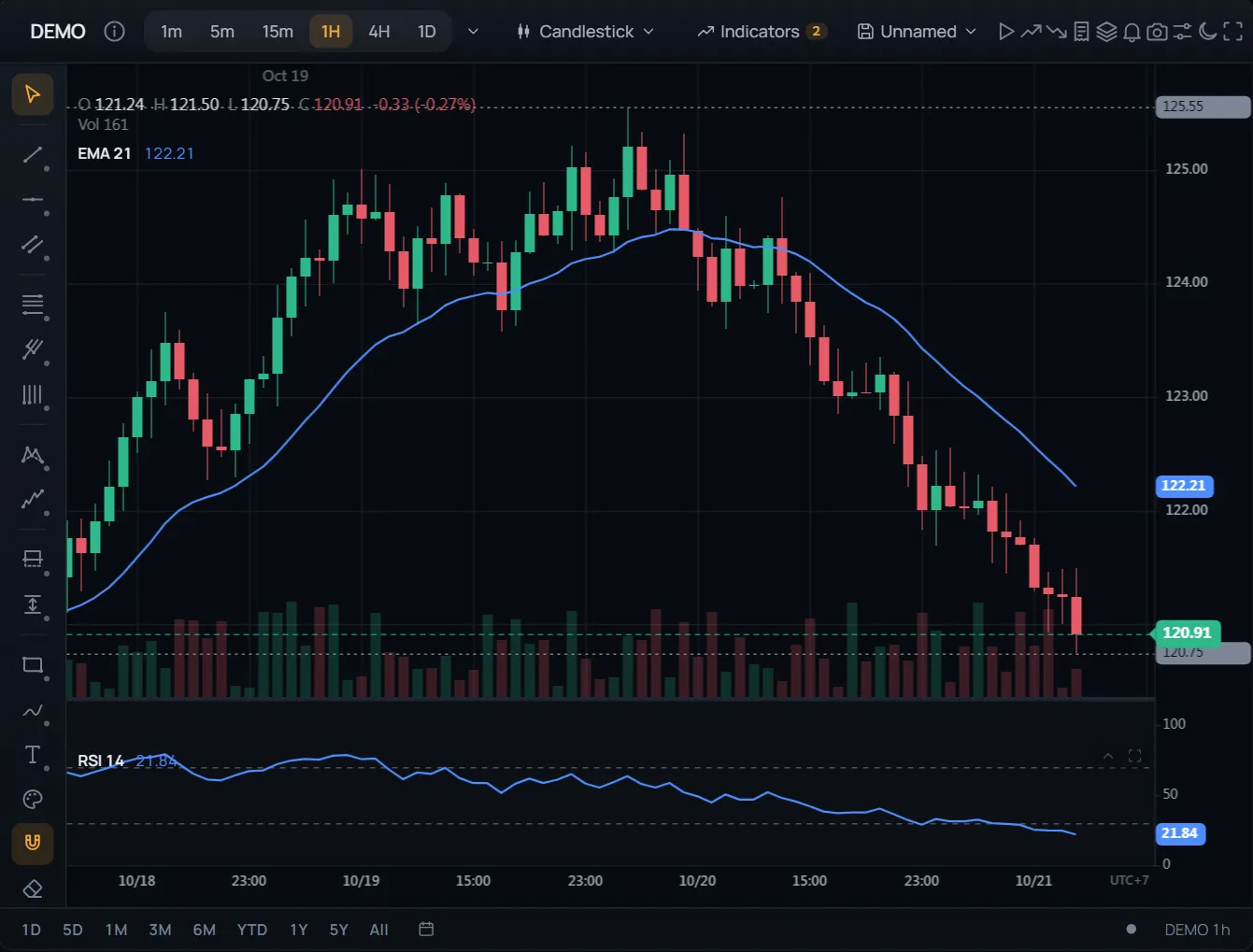 ● DemosYour own lookSimulated market data, generated in your browser
Presets
| Preset | Look |
|---|---|
studio (default) | Rounded 7 px controls, 11 px menus and 16 px dialogs. Groups are spaced instead of ruled, menus float on soft shadows, the interval buttons sit in a segmented track, and a chosen button is a tinted fill. |
terminal | Dense and square: 2 px corners, 26 px controls, rules between groups, capital labels, and a line under the chosen button. Price tags on the chart are square. |
capsule | Pills everywhere, pill price tags included. The toolbar and the drawing tools float as islands, menus are frosted glass, and a chosen button is a solid pill. |
Picking a look
import { ChartWidget, ChartWidgetGrid } from '@tradecanvas/chart/widget'

const widget = new ChartWidget(host, { ui: 'terminal' })
widget.setUI('capsule')        // in place: nothing is rebuilt
widget.getUI()                 // every token, resolved

// A grid: every chart and the grid's bar, and the charts it adds later
const grid = new ChartWidgetGrid(host, { layout: '2x2', widget: { ui: 'terminal' } })
grid.setUI('studio')
grid.getUI()
Your own look
A theme starts from a preset (Studio when you name none) and changes what it names. Corners set on the scale reach every part that follows it, unless you set that part's own.
widget.setUI({
  preset: 'studio',
  radius: { xs: 3, sm: 5, md: 10, lg: 12, xl: 18 },  // the scale, px (999: pills)
  components: { dialog: 20, tag: 0 },                // a part's own corners
  density: 'compact',                                // compact · comfortable · spacious
  sizes: { toolbar: 40 },                            // px; wins over density
  font: {
    family: "'Manrope', system-ui, sans-serif",
    mono: "'JetBrains Mono', monospace",
    size: 13, weight: 500, strongWeight: 600,
    labelCase: 'uppercase', labelTracking: 0.06,      // small labels
  },
  borders: { width: 1, separators: true },           // rules between toolbar groups
  shadows: { menu: '0 12px 30px rgba(0, 0, 0, 0.4)' },
  blur: 12,                                          // frosted floating surfaces, px
  active: 'solid',                                   // tint · solid · underline
  toolbar: 'floating',                               // docked · floating
  sidebar: 'floating',
  intervals: 'segmented',                            // plain · segmented
  tagRadius: 999,                                    // the chart's price tags and pills
})| Field | What it sets |
|---|---|
radius | The corner scale xs, sm, md, lg, xl, px (0–999). |
components | A part's own corners: control (buttons), input, menu, dialog, panel (alerts, data window, order ticket), tooltip, tag, toast, toolbar and sidebar (their own box, seen when they float). By default controls and
fields take md, menus and panels lg, dialogs xl, tooltips and tags sm. |
density / sizes | toolbar height, control and controlSmall heights, icon, sidebar width and menuItem height, px. |
font | Families (CSS lists), body size (11–20 px; the small sizes follow it), weights, and the case
and letter spacing (em) of small labels such as section titles. |
borders | Border width, and whether rules separate the toolbar's groups and the drawing tools. |
shadows | CSS shadows of menus, dialogs and tooltips. |
blur | Frosted menus, px: above 0, menus let some of the chart through, blurred. |
active | How a chosen button shows: a tinted fill, a solid pill, or an underline. |
toolbar / sidebar | Along the edge, or floating as an island. |
intervals | The interval buttons as they are, or in a segmented track. |
tagRadius | Corners of the price tags, axis pills and order badges the chart draws. |
Values it can't use (out of range, or CSS that could leave its declaration) are ignored and keep the preset's.
Fonts
The widget loads no fonts: it names them, and the browser falls back along each list. Studio names Manrope, then Inter; Terminal IBM Plex Sans Condensed and IBM Plex Mono; Capsule Sora. Load the ones you want:
<link rel="stylesheet" href="https://fonts.googleapis.com/css2?family=Manrope:wght@400;500;600;700&display=swap">CSS variables
The tokens are CSS variables on the widget's root (and on its dialogs). Without the ui option they
stay the stylesheet's — Studio's — so your own CSS can set them: the widget puts its stylesheet first in the
page, so a rule of yours on .tcw-root wins. With ui, the widget writes them on the
element, and they win.
.tcw-root {
  --tcw-radius: 4px;            /* the md corner: buttons and fields follow it */
  --tcw-dialog-radius: 12px;
  --tcw-control-h: 28px;
  --tcw-font: 'Inter', system-ui, sans-serif;
}| Variables | From |
|---|---|
--tcw-radius-xs, -sm, --tcw-radius, -lg, -xl | radius |
--tcw-control-radius, --tcw-input-radius, --tcw-menu-radius, --tcw-dialog-radius, --tcw-panel-radius, --tcw-tooltip-radius, --tcw-tag-radius, --tcw-toast-radius, --tcw-toolbar-radius, --tcw-sidebar-radius | components |
--tcw-toolbar-h, --tcw-control-h, --tcw-control-h-sm, --tcw-icon, --tcw-sidebar-w, --tcw-menu-item-h | sizes |
--tcw-font, --tcw-font-mono, --tcw-font-size (and -sm, -xs, -lg), --tcw-weight, --tcw-weight-strong, --tcw-label-case, --tcw-label-tracking | font |
--tcw-border-w, --tcw-sep-w | borders |
--tcw-menu-shadow, --tcw-dialog-shadow, --tcw-tooltip-shadow | shadows |
--tcw-blur, --tcw-surface-opacity | blur |
The layout switches are data attributes on the same elements, for CSS of your own: data-tcw-ui (the preset), data-tcw-active, data-tcw-toolbar, data-tcw-sidebar, data-tcw-intervals and data-tcw-separators (on / off).
The chart's look: style overrides
The theme sets the chart's colours as a whole. Any one part of what the chart draws can be set apart from it, by key: the grid's lines each way, the crosshair, the axes, the panes, the legend, the last price, the volume, the session breaks and the main series as each chart type draws it. A key left alone follows the theme, so a theme switch still recolours everything you didn't set.
import { Chart } from '@tradecanvas/chart'

const chart = new Chart(host, {
  overrides: { 'grid.vertical.visible': false },       // to start with
})

chart.applyOverrides({
  'series.candlestick.upColor': '#26a69a',              // every up/down type falls back to it
  'series.candlestick.downColor': '#ef5350',
  'grid.horizontal.style': 'dotted',
  'crosshair.vertical.style': 'solid',
  'crosshair.labelBackground': '#2962ff',
  'lastPrice.style': 'solid',
  'panes.background': '#0d1117',
  'legend.textColor': '#c9d1d9',
})
chart.applyOverrides({ 'legend.textColor': null })      // null takes a key away
chart.resetOverrides(['grid.horizontal.style'])         // or name the keys
chart.setOverrides({ 'background.color': '#000' })      // all of a layer at once

chart.getStyleValue('series.bar.upColor')               // '#26a69a': what a key resolves to
chart.getStyle().grid.vertical                          // { visible: false, color, style, width }
chart.on('styleChange', (e) => e.payload.layer)         // 'host' or 'user'
Keys
| Keys | What they set |
|---|---|
background.color | The chart's background (and the panes', unless they have their own). |
panes.background, .separatorColor, .titleColor | Indicator panes: background, the bar at their top, their name. |
grid.horizontal.*, grid.vertical.* | visible, color, style (solid · dashed · dotted), width — each way apart. |
crosshair.horizontal.*, crosshair.vertical.* | The same four for the crosshair's lines (dashed by default). |
crosshair.labelBackground, .labelTextColor | The price and time pills on the axes, and on the panes' scales. |
axis.price.lineColor, .textColor, axis.time.* | Each axis's line and labels (the panes' scales take the price axis's). |
legend.textColor, .labelColor | The legend's values, and its labels (O, H, L, Vol). |
lastPrice.visible, .upColor, .downColor, .style, .width | The last-price line and tag; their colours follow the series' unless set. |
volume.upColor, .downColor | The volume bars. |
sessionBreaks.color, .style, .width | The day, week and month breaks. |
highLow.color, watermark.color | The high and low lines, the watermark. |
trading.buyColor, .sellColor, .profitColor, .lossColor, .entryColor | Orders (buy, sell) and positions (profit, loss, entry), on the chart and on the price axis, over the trading config's colours. |
markers.longColor, .shortColor, .neutralColor | Signal markers, over their own style. |
tradeZones.profitColor, .lossColor, .activeColor | Trade zones: won, lost and still open. |
drawings.handleColor | A selected drawing's handles (white without it). |
series.<type>.* | The main series while it is drawn as that type: upColor, downColor, wickUpColor, wickDownColor (candles, Heikin-Ashi, volume candles, equivolume), color / lineColor and lineWidth (line, step line, line with markers, area, HLC area, baseline), topColor and bottomColor (area, HLC area). |
CHART_STYLE_KEYS lists every key with the kind of value it takes, and TypeScript checks keys and
values as you write them. Up and down colours fall back to series.candlestick.*, line colours and widths
to series.line.*, area fills to series.area.*, then to the theme; a wick takes its body's
colour once that is set. Unknown keys and values are left out with a warning.
Your app's and the user's
Overrides come in two layers. Yours (layer: 'host', the default) stay through theme switches and are
never saved. The user's (layer: 'user') win over yours, are kept with the theme they were made on —
colours picked on the dark theme come back with the dark theme — and are saved with saveState(). The
widget's Settings write the user's layer, and its Reset goes back to the theme's colours, whichever theme it is.
Its Style tab sets every part of the chart's look by these keys, the colours of the chart type on view included,
and its Trading tab the colours of orders, positions, signal markers and trade zones. A colour left to the part
itself shows as Auto, and Auto takes one back there.
chart.applyOverrides({ 'background.color': '#0b0b0f' }, { layer: 'user' })
chart.getOverrides({ layer: 'user' })                 // the user's, for the current theme
chart.getTheme()                           // the theme as set: the overrides go on it apart
The grid and crosshair options (grid.hLineColor, crosshair.vLine.style…) are shorthand
for their keys. A grid of charts takes overrides for all of its charts: grid.applyOverrides(patch). The
React, Vue and Svelte components take them as an overrides prop.
Indicator plots and panes
// Each plot's own dash and visibility, by its key (colours and widths stay in colors / lineWidths)
chart.updateIndicatorStyle(macdId, { plots: { signal: { lineStyle: 'dashed' }, histogram: { visible: false } } })

// What every indicator of a kind starts with from now on
chart.setIndicatorDefaults('ema', { colors: ['#f5a623'], lineWidths: [2] })

// A pane's own background and separator, saved with its indicator
chart.setPaneStyle(rsiId, { background: '#101418', separator: '#f5a623' })
A hidden plot shows no value tag and no legend value. Every indicator leaves a hidden plot out, and nearly every one takes its plots' dash; a few that draw shapes of their own (Parabolic SAR's dots, Supertrend, Zig Zag, the volume profiles) keep their own stroke.
The chart's tags
The widget hands tagRadius to its chart (a shape in chartOptions.shapes stays until
you call setUI). On a bare Chart, set the shape yourself; it lasts across theme
switches. Price tags, axis and crosshair pills, order, position and bracket tags and period-level tags take it.
const chart = new Chart(host, { shapes: { tagRadius: 4 } })
chart.setShapes({ tagRadius: 999 })   // pill price tags, axis pills and order badges
chart.getShapes()
The OHLCV legend
The legend at the top of the chart shows the bar under the pointer (the last bar otherwise): open, high, low, close, the change and the volume. Each value keeps its place while its digits change, so it doesn't jitter on live ticks. It can be turned off, or trimmed to the rows you want. In the widget it takes the look's font, at the size of the indicator rows listed under it; setUI sets that again, after a setLegend of your own.
new Chart(host, { features: { legend: false } })   // no legend at all
chart.setLegend({ visible: false })                  // or at any time
chart.setLegend({
  showSymbol: false, showOHLC: true, showChange: true, showVolume: false,
  position: 'top-right',
  fontSize: 11,
  fontFamily: 'Inter, sans-serif',                   // null: the theme's font
})

// The widget: start with it off (the user can still turn it on in Settings)
new ChartWidget(host, { chartOptions: { features: { legend: false } } })
Volume colours
Volume bars take the theme's volumeUp and volumeDown (or the volume.* keys). volumeColor(candleColor) gives the candle colour at the volume's opacity, so in a theme of your own the bars stay a backdrop under the candles. The widget does this itself when its settings change the candle colours, and a theme spread from a preset that only changes candleUp / candleDown gets volume in those colours too.
import { DARK_THEME, volumeColor } from '@tradecanvas/chart'

chart.setTheme({
  ...DARK_THEME,
  candleUp: '#26a17b',
  candleDown: '#e0525f',
  volumeUp: volumeColor('#26a17b'),
  volumeDown: volumeColor('#e0525f'),
})