API reference
Public surface of the top-level classes: Chart, ChartWidget, ChartWidgetGrid and ChartGrid.
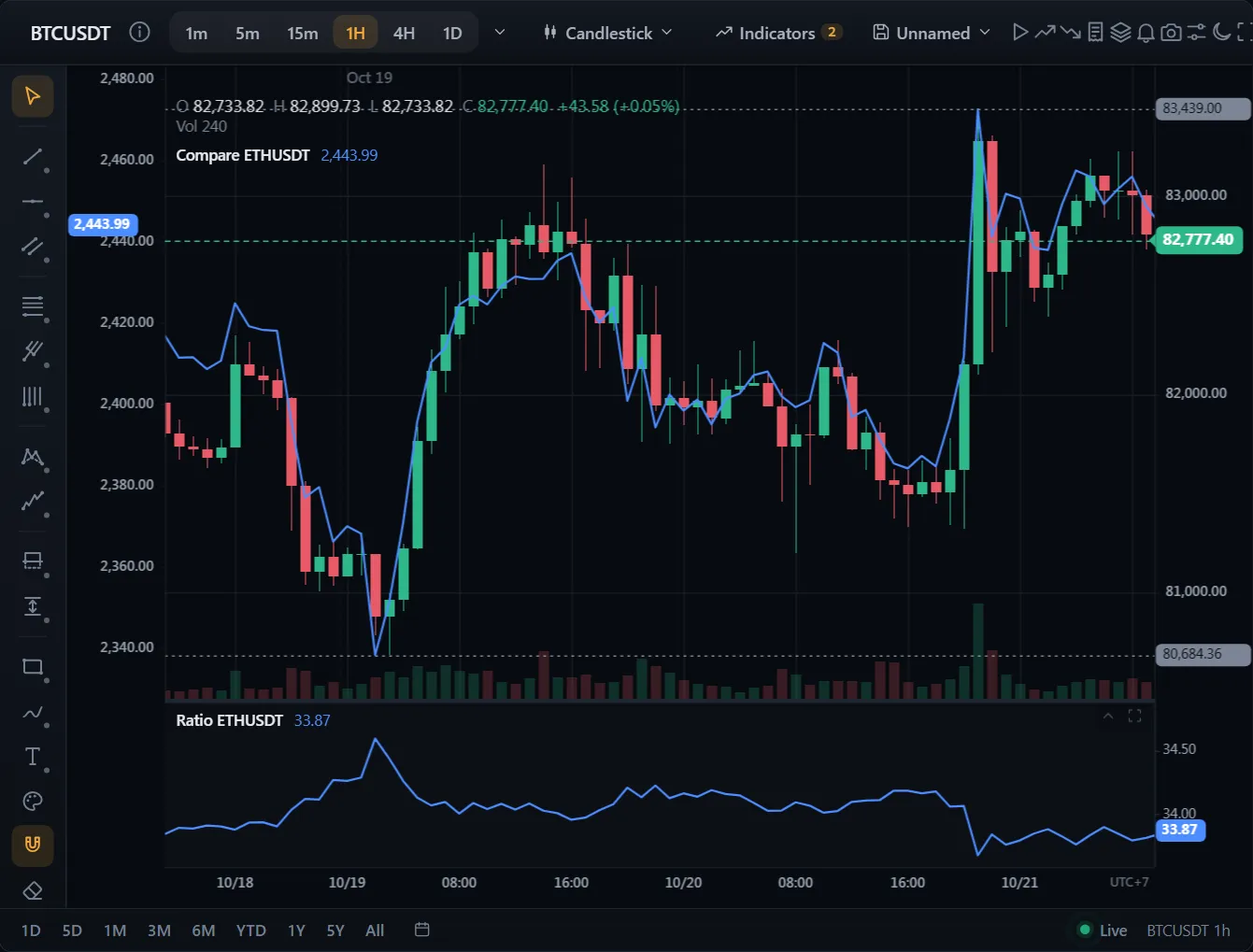 ● DemosCompare, spread and ratioSimulated market data, generated in your browser
Chart
Headless renderer. Bring your own UI; subscribe to events; mutate state imperatively.
Construction
new Chart(host: HTMLElement, options?: ChartOptions)Data
| Method | Purpose |
|---|---|
setData(data) | Replace the entire series. |
appendBar(bar) | Append a new bar; auto-scroll if enabled. |
appendBars(bars) | Batch append; recalculates indicators once. |
updateLastBar(bar) | Mutate the current forming bar. |
updateLastBarFromTick(tick) | Merge a tick into the last bar. |
getData() | Read the raw OHLC series. |
Bar times are epoch milliseconds or seconds, one unit for the whole series. The chart reads it once, from the newest bar: barTimeUnit(data) gives 1 (milliseconds, from 1e11 up) or 1000 (seconds). So a series in milliseconds keeps its dates before 2001 too, though they are below 1e12. Keep a series in one unit; the times the chart hands back (events, getData()) are in it.
Chart type & theme
| Method | Purpose |
|---|---|
setChartType(type) | One of 18 types — see Chart types. |
setTheme(name | theme) | Switch between built-in themes, or set your own. getTheme() gives it back as set. |
applyOverrides(patch, { layer }) | Style any part of the chart by key ('grid.vertical.visible', 'series.candlestick.upColor'…); null takes a key away. See Styling. |
setOverrides(overrides, { layer }) · resetOverrides(keys?, { layer }) | All of a layer at once; take keys (or all) away. |
getOverrides({ layer }) · getStyle() · getStyleValue(key) | A layer's overrides; the looks as resolved; what one key resolves to. |
setTimeframe(tf) | Switch active timeframe; rewires the live stream. |
Renderer
| Method | Purpose |
|---|---|
renderer option | 'canvas' (default), 'webgl', or 'auto' (WebGL on a hardware GPU only). |
setRenderer(mode) | Switch at runtime. Resolves to what draws now: 'canvas' where WebGL 2 can't be had. |
getRenderer() | 'canvas' or 'webgl'. |
What the GPU draws, and the numbers: Performance → WebGL renderer.
Indicators
| Method | Purpose |
|---|---|
addIndicator(id, params?, position?) | Adds an overlay or panel indicator. Returns instance id. |
updateIndicator(instanceId, params) | Mutate a live indicator. |
removeIndicator(instanceId) | Remove and tear down. |
updateIndicatorStyle(instanceId, style) | Colours, line widths, opacity, and each plot's dash and visibility (plots: { signal: { lineStyle: 'dashed' } }). |
setIndicatorDefaults(id, style | null) | The style indicators of a kind start with from now on. |
setPaneStyle(instanceId, { background, separator } | null) · getPaneStyle(instanceId) | A pane's own look, saved with its indicator. |
Axis & scale
The price axis (right strip) and time axis (bottom strip) accept direct pointer interaction, with the gestures traders already know:
| Gesture | Effect |
|---|---|
| Drag price axis up / down | Compress / expand the vertical price range (disables auto-scale). |
| Drag time axis left / right | Zoom in / out on the time axis. |
| Double-click price axis | Re-enable auto-scale. |
| Double-click time axis | Fit all data to the viewport. |
Timezone. Time-axis labels and the crosshair time pill follow the browser's local zone by default; switch to a fixed UTC offset (or back to local) from the settings sheet or directly:
chart.setTimezoneOffset(-300)  // EST (UTC-5), in minutes
chart.setTimezoneOffset(330)   // IST (UTC+5:30)
chart.setTimezoneOffset(null)  // back to browser-local
The same effects are also available programmatically:
chart.setAutoScale(false)  // freeze the current price range
chart.setLogScale(true)    // switch to logarithmic price scale
chart.setInvertScale(true) // upside down (Alt+I in the widget)
chart.fitContent()         // zoom out to all data
chart.scrollToEnd()
chart.setVisibleRangePreset('3M')       // 1D 5D 1M 3M 6M YTD 1Y 5Y All
chart.setMinBarUnit(0.05)               // narrower bars, so 'All' fits a long series (0.25 by default)
chart.goToTime(Date.UTC(2025, 0, 1))    // centre that bar (Alt+G in the widget)
Long ranges. A bar slot is never narrower than 0.25 px, so a range longer than that allows (26 years of days on a laptop) shows its newest part. In the widget a long range on the range bar switches to the timeframe whose bars fit, at 2 px a bar or more: 5Y of days goes to weeks, All to months; a short range goes back to the timeframe you picked, never finer. It switches only to timeframes your feed serves (or the bars here resample to). features: { 'statusBar.rangeTimeframe': false } keeps the timeframe. On a bare Chart, minBarUnit (an option, or setMinBarUnit) lets slots go down to 0.02 px, drawn a pixel column at a time.
Price scale modes. Beyond regular and logarithmic, the axis
can rebase its labels against the first visible bar — percentage shows % change, indexedTo100 rebases the baseline to 100. Regular,
percentage, and indexed share the same linear geometry; only the labels
differ. Settable from the chart-settings panel or directly:
chart.setScaleMode('percentage')   // axis labels: +12.34% from first visible bar
chart.setScaleMode('indexedTo100') // first visible bar reads as 100
chart.setScaleMode('logarithmic')
chart.getScaleMode()
Price and time formats
Prices can read in your own words, or in fractions of a point the way bonds and their
futures are quoted (101'16 is 101 and 16/32). The format reaches
everything that prints a price on the price scale: axis, crosshair, last-price tag,
legend, tooltips, orders, alerts and drawing labels; the axis puts its ticks on whole
fractions and roundPrice rounds to them. Indicator panes keep their own
numbers. Times can read your way too; the formatter is told what a label is.
new Chart(host, { priceFormat: { denominator: 32 } }) // 101'16
chart.setPriceFormat({ denominator: 32, subDenominator: 2 }) // 101'165: 16½ 32nds
chart.setPriceFormat((p) => ' How the axes choose their labels
The time axis labels the bars that start the largest calendar steps: a year (in bold), a month, a day, a round hour, at least 80 px apart. So at 5Y it reads 2022 · Jul · 2023, at a month Oct · 8 · 15, within a day 12:00 · 18:00. The labels belong to bars, not to the screen: panning moves them with their bars, and history loaded in front leaves them where they were. Left of the oldest bar there are none. Month names follow setNumberLocale, and the grid's lines go where the labels are.
The price scale fits as many labels as its height does, at least 30 px apart, on the market's price step. On a log scale its step grows with the price, so the bottom is labelled as well as the top; on a percent or indexed scale its labels are round percents or index points from the baseline. Indicator panes count their labels by their height too.
Markets: price steps, limits and sessions
setMarket gives the chart an exchange's rules: candle colours, decimals, the
price step (which can depend on the price), the daily ceiling and floor, and the lot. roundPrice and getPriceStep follow the step of the price's band, so
prices from the chart's menus land on valid prices, and the widget's order ticket checks
an order against the step, the day's limits and whole lots. A preset also carries the
exchange's sessions and time zone, for getCurrentSession and your own code; the
chart's session shading and extended hours come from setSymbolInfo. Presets cover the Vietnamese exchanges as of May 2025: HOSE (10, 50 or
100 dong a step by price, ±7%), its ETFs and covered warrants (10 dong), HNX (±10%, a
post-close session), UPCoM (±15%) and VN30 index futures (0.1 a point, ±7%, from 8:45);
shares and lots of 100, green up and red down, purple ceiling, cyan floor and yellow
reference. Their prices are in thousands of dong, as price boards show them; scaleMarketPrices(preset, 1000) reads prices in dong.
import {
  MARKET_HOSE, scaleMarketPrices, priceStepAt, roundToPriceStep, getCurrentSession,
  vn30fContracts, vn30fLastTradingDay,
} from '@tradecanvas/chart'

chart.setMarket(MARKET_HOSE)                 // or scaleMarketPrices(MARKET_HOSE, 1000) for 25350
chart.setPriceLimits(25.35)                  // the reference: yesterday's close
chart.getPriceLimits()                       // { ceiling: 27.1, floor: 23.6, reference: 25.35 }
chart.roundPrice(25.37)                      // 25.35, a 50-dong step
chart.getPriceStep(9.5)                      // 0.01 below 10,000 dong

// The rules on their own
priceStepAt(25.35, MARKET_HOSE)              // 0.05
roundToPriceStep(10.486, MARKET_HOSE, 'down') // 10.45
getCurrentSession(MARKET_HOSE.sessions, Date.now(), MARKET_HOSE.timeZone) // { name: 'ATC', type: 'preClose', … }, by the clock only

// VN30 futures: the four listed contracts and their last trading days
vn30fContracts(Date.now())                   // [{ symbol: 'VN30F2611', lastTradingDay: '2026-11-19', … }, …]
vn30fLastTradingDay(2026, 12, (day) => holidays.has(day)) // the third Thursday, earlier on a holiday
A market of your own is a MarketConfig: priceStep, or priceSteps: [{ from, step }] for bands, priceLimits, volumeUnit (the lot), sessions, timeZone and colorScheme. A symbol's own minTick comes before the market's
step. Exchanges change their rules from time to time; check a preset against your
exchange's current rules before you rely on it.
Comparing symbols
Another symbol's percent change on the price scale (addCompareSymbol), or
its price on a scale of its own, in a pane of its own, or the spread or ratio of the
chart's close to it — those last are indicators (compareSymbol, spread), with legends, value tags, alerts and saved layouts like any
other. The other symbol's bars line up with the chart's by time. The chart asks for
the bars it needs; give them again after a timeframe change. correlation (of the closes)
and correlationlog (of bar-to-bar returns) read the other symbol the same way, from −1 to 1.
chart.addCompareSymbol('eth', 'ETHUSDT', ethBars, '#7c4dff')   // percent change, on this scale
chart.addIndicator('compareSymbol', { symbol: 'ETHUSDT' }, 'bottom', { scale: 'left' })  // own scale
chart.addIndicator('spread', { symbol: 'ETHUSDT', mode: 'ratio' })                      // own pane
chart.addIndicator('correlation', { symbol: 'ETHUSDT', length: 20 })                    // −1 to 1, own pane

chart.on('symbolSeriesRequest', async ({ payload }) =>
  chart.setSymbolSeries(payload.symbol, await adapter.fetchHistory(payload.symbol, '1h', 1000)))
chart.getRequiredSymbols()                           // what to fetch again on a new interval
chart.setPaneScale(spreadId, { percent: true })     // a pane in percent of its first value
In ChartWidget, the object tree's compare button asks for a symbol, then how:
percent change, own scale, own pane, spread, ratio, or the correlation of prices or of returns.
Exporting data
The bars as CSV or JSON, each indicator line in a column of its own named as the
legend names it. ChartWidget has Export data (CSV) in the chart's
right-click menu.
chart.exportAllData('csv', 'btc-1h.csv')                 // every bar loaded
chart.exportVisibleData('json', undefined, { indicators: false })
const text = chart.getExportText('csv', { range: 'visible' })
const { bars, columns } = chart.getExportData()          // columns: { name, values }[]
Volume Profile
Horizontal histogram of traded volume bucketed by price over the visible
range. Off by default — toggle programmatically or via the widget
settings sheet:
chart.setVolumeProfileVisible(true)
chart.setVolumeProfileConfig({
  buckets: 48,        // resolution of the histogram
  widthRatio: 0.18,   // % of chart width
  opacity: 0.32,
  highlightPoC: true, // mark the highest-volume bucket
})
Swing markers (pivots)
Mark fractal swing highs/lows with small triangles (▼ above a confirmed pivot
high, ▲ below a pivot low). The strength controls how many bars must be lower
on each side. Toggle from the settings sheet, or:
chart.setPivotMarkersVisible(true)
chart.setPivotMarkersConfig({ left: 5, right: 5, showLabels: true })

// market-structure labels (HH / HL / LH / LL) instead of price
chart.setPivotMarkersConfig({ structureLabels: true })

// pure detection + classification are exported
import { findPivots, classifyPivots } from '@tradecanvas/core'
const pivots = findPivots(bars, 5, 5)        // [{ index, price, type }]
const structure = classifyPivots(pivots)     // adds label: 'HH'|'LH'|'HL'|'LL'
Session shading (regular trading hours)
Dim bars outside the regular session (pre/post-market or the overnight break)
so the cash session stands out. Defaults to US equity RTH (09:30–16:00 New
York time, daylight saving included); configure the window in minutes-of-day
plus the market's time zone. A symbol whose feed reports its sessions sets
them by itself.
chart.setSessionShadingVisible(true)
chart.setSessionShadingConfig({
  startMinute: 9 * 60 + 30,     // 09:30
  endMinute: 16 * 60,           // 16:00 (end-exclusive; end < start wraps midnight)
  timeZone: 'America/New_York', // or tzOffsetMinutes: -300 for a fixed offset
})
Extended hours. Turn them off and the bars outside the symbol's
regular hours (SymbolInfo.sessions in its timezone) leave the
chart; they are kept aside, live bars and history pages too, and come back when
turned on. Bars a day or longer are left as they are.
chart.setSymbolInfo({ symbol: 'AAPL', timezone: 'America/New_York', sessions: [{ start: '09:30', end: '16:00' }] })
chart.setExtendedHours(false)     // or new Chart(host, { extendedHours: false })
chart.isExtendedHoursVisible()
Prior-period levels (PDH / PDL / PDC)
Draw the prior day's (or week's) high, low, and close plus the current
period's open as labelled horizontal lines — the support/resistance levels
intraday traders watch. Toggle from the settings sheet, or directly:
chart.setPeriodLevelsVisible(true)
chart.setPeriodLevelsPeriod('week')   // 'day' (PDH/PDL/PDC) | 'week' (PWH/PWL/PWC)

// pure computation is exported
import { computePeriodLevels } from '@tradecanvas/core'
const levels = computePeriodLevels(bars, 'day')  // [{ id, label, price }]
Market Profile (TPO)
A time-at-price histogram: each bar contributes one TPO to every price bucket
its range touched, surfacing the Point of Control (busiest price) and the
value area (≈70% of TPOs). Distinct from Volume Profile — it weights by time,
not volume — and is left-pinned so both can show together. Off by default;
toggle from the settings sheet or directly:
chart.setMarketProfileVisible(true)
chart.setMarketProfileConfig({
  buckets: 48,
  widthRatio: 0.18,
  opacity: 0.32,
  valueAreaPct: 0.7,  // fraction of TPOs in the value area
  highlightPoC: true, // dashed line at the point of control
})

// split into one mini-profile per calendar-day session
chart.setMarketProfileConfig({ splitBySession: true })

// classic TPO letters per session (when zoomed in enough to be legible)
chart.setMarketProfileConfig({ splitBySession: true, letters: true })

// pure computation is exported too
import { computeMarketProfile, computeSessionProfiles } from '@tradecanvas/core'
const profile = computeMarketProfile(bars, priceMin, priceMax, { buckets: 48 })
const sessions = computeSessionProfiles(bars, priceMin, priceMax)  // per-day TPO
Touch & mobile
Gesture Action 1-finger drag (chart area) Pan + move crosshair 2-finger pinch Zoom around the midpoint Long-press (~500 ms) Pin OHLC tooltip at the bar (mobile equivalent of Alt-click) 1-finger drag inside price / time axis strip Scale the corresponding axis
Modals (settings, hotkey sheet, command palette, symbol search) automatically
switch to a bottom-sheet pattern with a grab handle and safe-area-aware
padding under 640 px viewports.
Measure tool
Hold Shift and drag on the chart to measure bars × price between
two points — the overlay shows price Δ (absolute + %), bar count, and time
span. The overlay clears as soon as the mouse is released; it does not
persist into saved state.
Events
All events are typed via ChartEventMap:
chart.on('orderPlace', e => /* OrderPlacePayload */)
chart.on('orderModify', e => /* OrderModifyPayload */)
chart.on('signalMarkerAdd', e => /* { marker } */)
chart.on('tradeZoneAdd', e => /* { zone } */)
chart.on('dataUpdate', e => /* { length } */)
chart.on('ordersChange', e => /* { orders } */)
chart.on('positionsChange', e => /* { positions } */)
chart.on('executionFill', e => /* { side, price, quantity, reason, pnl } */)
chart.on('chartContextMenu', e => /* { area, x, y, price, time } */)
chart.on('stateChange', () => /* drawings, indicators, alerts, chart type or theme may have changed */)
chart.on('paneChange', e => /* { instanceId, change: 'collapsed' | 'maximized' | 'order' } */)
chart.on('chartTypeChange', e => /* { type, previous } */)
chart.on('symbolChange', e => /* { symbol, previous } */)
chart.on('timeframeChange', e => /* { timeframe, previous } */)
chart.on('historyChange', e => /* { canUndo, canRedo } */)
chart.on('drawingSelect', e => /* { ids, primary } */)
chart.on('rendererChange', e => /* { renderer: 'canvas' | 'webgl', reason?: 'unsupported' | 'contextLost' | 'contextRestored' | 'limit' } */)
Undo for your own changes
recordUndo puts a change of yours in the chart's undo history, with its drawings and
indicators: Ctrl/Cmd+Z calls undo, redo calls redo. Changes about the same subject close together are one step. ChartWidget records its settings and chart type this way.
const before = panel.color
panel.color = 'red'
chart.recordUndo({ subject: 'panel-color', undo: () => (panel.color = before), redo: () => (panel.color = 'red') })
Keyboard and screen readers
A focused chart scrolls with the arrow keys (Shift for ten bars), zooms with ↑/↓ or +/−, and goes to
the start and end with Home and End. For screen readers it is an application with a summary
(symbol, type, timeframe, last price); after the keys move the view it says what is on screen, and
comma and period read the bars one at a time. a11y.labels puts it in your language; a11y: false leaves it out. scrollBars(n) and selectDrawing(id) do from code what the keys and a click do.
new Chart(host, { a11y: { labels: { role: 'gráfico', summary: '{what}. Último precio {close}.' } } })
Prices from the pointer can be put on the market's grid with chart.roundPrice(price): a multiple of the symbol's minTick, else
its precision. ChartWidget's menus, order ticket and the drawing settings' Coordinates tab do this. chart.getPriceStep() is that step itself.
ChartWidget
Wraps Chart in a complete UI. Same instance is available via widget.chart.
import { ChartWidget } from '@tradecanvas/chart/widget'

const widget = new ChartWidget(host, {
  symbol: 'BTCUSDT',
  timeframe: '5m',
  theme: 'dark',
  adapter: new BinanceAdapter(),
  historyLimit: 500,
  trading: true,
  features: { 'toolbar.replay': false },   // the widget's switches: see Customization
  onReady: (chart) => { /* ... */ },
})

widget.chart.setData(...)
widget.destroy()
Widget keyboard shortcuts
Shortcut Action Ctrl / ⌘ + K Command palette (indicators, chart types, drawings…) Ctrl / ⌘ + P Symbol search — fuzzy picker over the configured symbol list Ctrl / ⌘ + S Save the layout (asks for a name the first time) 0–9 Type an interval (5, 15m, 1h, 1D) and press Enter (intervalTyping: false turns it off) Alt + T / H / J / V / C / F Trend line, horizontal line, horizontal ray, vertical line, cross line, Fibonacci retracement ? Show the keyboard shortcuts sheet Alt + click chart Pin OHLC tooltip at the hovered bar (delta to live crosshair shown) Esc Unpin tooltip / cancel drawing Click symbol in toolbar Opens the symbol search modal Click play in toolbar Opens the bar replay scrubber (play/step/seek/speed)
Update the searchable catalog at runtime with widget.setSymbols(['BTCUSDT', 'ETHUSDT', …]).
Data Window
A floating readout of the exact O/H/L/C/V, bar change, and every active
indicator's value at the hovered bar — updates live as you move the
crosshair. Toggle it from the command palette (Ctrl/⌘ K →
"Toggle Data Window").
Shareable view (deep links)
Encode the whole view — symbol, timeframe, chart type, price scale,
indicators (with params), and drawings — into a compact, URL-safe string for
deep-linking. With shareUrl: true the widget restores a #tcw=… hash on load and the "Share View" command palette action
copies a link to the clipboard.
const widget = new ChartWidget(host, { shareUrl: true })

const token = widget.exportState()      // portable string
await widget.importState(token)         // restore a view
await widget.copyShareLink()            // copy "<url>#tcw=<token>"
Named layouts
The layout button on the toolbar saves the chart under a name: symbol,
interval, price scale, chart type, indicators, drawings and alerts (not the
theme, which stays the viewer's). Open, rename and delete layouts from its
menu; the layout open auto-saves as it changes, and Ctrl/⌘ S saves
it. Layouts live in this browser's localStorage unless you give a storage: four calls, each may return a promise.
import { ChartWidget, type LayoutStorage } from '@tradecanvas/chart/widget'

const server: LayoutStorage = {
  list: () => api.get('/layouts'),              // [{ id, name, symbol, timeframe, updatedAt }]
  load: (id) => api.get(`/layouts/${id}`),     // { ...summary, content } or null
  save: (layout) => api.put(`/layouts/${layout.id}`, layout),
  remove: (id) => api.delete(`/layouts/${id}`),
}

const widget = new ChartWidget(host, {
  layouts: { storage: server, autoSave: true, openLast: true },  // or false for none
})

const layouts = widget.getLayoutSession()!
await layouts.saveAs('Swing BTC')
await layouts.open(id)
layouts.current()          // { id, name, … } or null
layouts.setAutoSave(false)

// The content alone, to keep wherever you like
const json = widget.getLayoutContent()
await widget.applyLayoutContent(json)
localStorageLayouts(prefix) and memoryLayouts() are the
two storages that ship. Stored content is read defensively: a layout that does
not parse is refused, not half applied. Each layout records its kind ('chart' or 'grid'), so a widget and a
grid can share one storage and each lists only its own. Saving, opening and
auto-saving run one at a time, so a save never lands in a layout opened after it.
Per-symbol layouts
Separately, persist per-symbol indicator stacks, drawings, alerts, and chart type
to localStorage automatically:
new ChartWidget(host, {
  symbol: 'BTCUSDT',
  symbols: ['BTCUSDT', 'ETHUSDT', 'SOLUSDT'],
  adapter: new BinanceAdapter(),
  persistLayouts: true,  // or { keyPrefix: 'myapp:', debounceMs: 2000 }
})

// Reset a single symbol's layout
widget.clearSavedLayout('BTCUSDT')
Layouts flush on symbol switch and on widget destroy so nothing is lost
when the user navigates away.
Drag-and-drop data import
Drop a CSV or JSON file onto the chart to load it instantly. Enabled by
default — disable with dragDropImport: false. The parser
handles common column layouts (time, open, high, low, close, volume),
ISO 8601 timestamps, and unix seconds/ms.
// Programmatic use
import { parseOHLCV } from '@tradecanvas/chart'

const { data, rowCount, skipped } = parseOHLCV(csvText)
chart.setData(data)
Timeframe resampling
Feed the widget your finest-resolution series with widget.setData() and the toolbar timeframe buttons aggregate it on the client — one dataset
drives every resolution, no refetch. Active whenever no live adapter is
attached; opt out with resampleTimeframes: false. Weekly buckets
anchor to Monday by default (weekStartsOn: 0 for Sunday).
const widget = new ChartWidget(host, {
  symbol: 'BTCUSDT',
  timeframe: '1h',
  timeframes: ['5m', '15m', '1h', '4h', '1d', '1w'],
})
widget.setData(oneMinuteBars)   // base series; clicking 4h/1d/1w resamples it

// Or use the pure function directly
import { resampleOHLCV, inferTimeframeMs } from '@tradecanvas/chart'

const hourly = resampleOHLCV(oneMinuteBars, '1h')   // OHLC merged, volume summed
const fourHour = resampleOHLCV(oneMinuteBars, '4h', { weekStartsOn: 1 })
Calendar-aware bucketing: intraday and daily frames anchor to UTC epoch
boundaries, weeks to the configured week start, and months / quarters / years
to calendar boundaries. Input bars are never mutated.
Watchlists
A right-side panel of lists of symbols, each row with last price, % change and a sparkline. Lists
are switched, created, renamed and deleted from its menu; symbols are added from the symbol search
(+), removed, and reordered by dragging or Alt+↑/↓. Rows take quotes from the adapter's subscribeQuotes, a quote source of yours, or what you push.
const widget = new ChartWidget(host, {
  symbol: 'BTCUSDT',
  adapter: new BinanceAdapter(),               // its quotes fill the rows
  watchlist: {
    lists: [
      { id: 'majors', name: 'Majors', symbols: ['BTCUSDT', 'ETHUSDT'] },
      { id: 'alts', name: 'Alts', symbols: ['SOLUSDT', 'ADAUSDT'] },
    ],
    persist: true,                             // kept in this browser
    onChange: (lists, active) => save(lists),  // or keep them yourself
  },
})

widget.addToWatchlist('BNBUSDT', 'alts')
widget.setActiveWatchlist('alts')
widget.setQuotes([{ symbol: 'AAPL', last: 190.2, prevClose: 188.1 }])   // from your own feed
widget.getQuote('AAPL')
watchlist: true shows one list of symbols, as before; setWatchlistEntry still pushes a row's price, move and sparkline.
Symbol info
A panel from the toolbar's ⓘ button (or the command palette): the symbol's names, last price and
move, the market's status counting down to the next open or close, the day's open, range, volume,
prior close, bid and ask, tick size, currency, zone and trading hours, and news. The status bar shows
when the market is closed.
new ChartWidget(host, {
  symbol: 'AAPL',
  news: (symbol, limit) => api.headlines(symbol, limit),   // or the adapter's fetchNews
})
widget.toggleSymbolInfo(true)
Navigation, undo and direction
Buttons over the chart — zoom out and in, scroll earlier and later (held, they keep going), reset —
show while the mouse is on it (navigation: false leaves them out). Settings changes and
chart type changes are undone with Ctrl/Cmd+Z, with drawings and indicators. In Arabic, Hebrew,
Persian or Urdu the widget mirrors (dir: 'auto'; or 'rtl' / 'ltr');
the chart keeps time running left to right.
Drawing favorites
Pin frequently-used drawing tools to a strip at the top of the sidebar.
Right-click any tool (in a group flyout or the strip itself) to pin or unpin
it; the set persists to localStorage. Seed the initial pins with drawingFavorites:
new ChartWidget(host, {
  drawingFavorites: ['trendLine', 'horizontalLine', 'fibRetracement', 'rectangle'],
})
Drawing style & templates
The palette button on the drawing sidebar opens a style popover — pick colour,
line width, and line style for the next drawing (and the selected one), and
save named templates persisted to localStorage for one-click
reuse. Programmatic equivalents:
chart.setDrawingStyle({ color: '#e8505b', lineWidth: 2, lineStyle: 'dashed' })
chart.getDrawingStyle()
chart.setSelectedDrawingStyle({ color: '#1fa874' })  // restyle the selected drawing
Object tree
The toolbar layers button opens an object-tree panel listing every active
indicator and drawing. Indicators can be removed; drawings get per-item
show / hide, lock / unlock, settings and delete, and groups are listed with
their drawings under them. Enabled by default — disable with objectTree: false. The drawing controls map to:
chart.getDrawings()                 // DrawingState[] (id, type, visible, locked)
chart.setDrawingVisible(id, false)  // hide a single drawing
chart.setDrawingLocked(id, true)    // lock it from edits
chart.removeDrawing(id)
chart.groupDrawings(ids, 'Weekly levels')  // hidden, locked and selected together
chart.renameDrawingGroup(groupId, 'Old highs')
chart.getActiveIndicators()         // active indicator instances
chart.updateIndicator(instanceId, { period: 50 })  // re-tune params live
chart.removeIndicator(instanceId)
Drawing settings and menu
Double-click a drawing, or use its gear in the object tree, to open its
settings: style, the tool's own settings (Fibonacci levels, extensions,
labels…) and its points in the chart's time zone. Right-click a drawing for
its menu: settings, an alert on its line, order, group, lock, hide,
duplicate and delete. The sidebar also has an eraser, a zoom tool and a
magnet that goes off, weak and strong. See Drawing tools for the API underneath.
The gear button on each indicator row opens a settings dialog that introspects the indicator's parameters (numbers, toggles, colors) and
applies edits live via updateIndicator — no need to remove and
re-add to change a period or colour.
The object tree's Compare section overlays other symbols as
normalized lines. With a live adapter, the + button opens the symbol picker,
fetches that symbol's history via adapter.fetchHistory, and adds
it in percent mode (so mixed-price symbols share one axis). Comparisons
refetch automatically on timeframe change. Programmatic equivalents:
widget.addCompareSymbol('ETHUSDT')   // fetches + overlays (needs an adapter)

// or drive the chart directly with your own data
chart.addCompareSymbol('ETHUSDT', 'ETH', ethBars, '#627eea')
chart.setCompareMode('percent')      // 'percent' | 'absolute'
chart.removeCompareSymbol('ETHUSDT')
Price alerts
Beyond a level, an alert can compare a line with another line (the price crossing a
moving average, MACD crossing its signal), fire on a move of some percent within some
bars (2 to 500), look only at closed bars (no firing on a wick that comes back), and
expire. The widget's alerts panel has all of these; from code they are the last
argument of addAlert. Alerts check on every price, from setCurrentPrice or a connected feed, together with the lines they watch:
const ema = chart.addIndicator('ema', { period: 50 })
const rsi = chart.addIndicator('rsi')
chart.addAlert(NaN, 'crossingUp', 'above the 50 EMA', 'price', undefined, { target: `${ema}:value` })
chart.addAlert(NaN, 'movesUp', 'pump', 'price', undefined, { percent: 5, bars: 12 })
chart.addAlert(70, 'greaterThan', 'RSI closed above 70', `${rsi}:value`, 'RSI', { onBarClose: true })
chart.addAlert(64_000, 'crossing', 'today only', 'price', undefined, { expiresAt: Date.now() + 86_400_000 })

chart.on('alertExpired', (e) => e.payload)   // it reached its time without firing
chart.on('alertTriggered', (e) => e.payload)  // { id, condition, channel, target?, percent?, bars?, … }
The toolbar bell opens a floating panel to add, list, and delete price
alerts; a toast fires when one triggers. Alert lines are also draggable — grab one on the chart and slide it to re-price
(moving an alert re-arms it). Enabled by default — disable with alerts: false. Drive it programmatically via the Chart API and the typed alert events:
// Add from code (condition: 'crossing' | 'crossingUp' | 'crossingDown'
//                          | 'greaterThan' | 'lessThan')
const id = chart.addAlert(64200, 'crossingUp', 'breakout')
chart.removeAlert(id)
chart.getAlerts()      // PriceAlert[]
chart.saveAlerts('tcw:alerts:BTCUSDT')   // localStorage persistence
chart.loadAlerts('tcw:alerts:BTCUSDT')

// React to triggers
chart.on('alertTriggered', (e) => {
  console.log('hit', e.payload.price, e.payload.message)
})
// also: 'alertAdd' / 'alertRemove' / 'alertUpdate' (fired on drag)

// Indicator alerts: bind to an indicator line via channel '<instanceId>:<key>'.
// In the widget, the alerts panel's source dropdown lists every active line.
const ema = chart.addIndicator('rsi')
chart.addAlert(70, 'crossingUp', 'RSI overbought', `${ema}:rsi`, 'RSI')
Opt into a sound and/or desktop notification when an alert fires (both off by
default). sound: true plays a built-in beep; pass a URL for a
custom one. desktop: true uses the Notification API and asks
permission on first use.
new ChartWidget(host, {
  alertNotifications: { sound: true, desktop: true },
})
Feature switches
112 switches, every one on until turned off: a name without a dot is a whole capability, off wherever it shows; a dotted name is one place. They change while the widget runs. All of them, and the older options they stand for, are in Customization.
new ChartWidget(host, { features: { 'toolbar.replay': false, 'sidebar.patterns': false, hotkeys: false } })   // one button, a section of drawing tools, every key

widget.setFeatures({ sidebar: false, statusBar: false })
widget.isFeatureOn('sidebar')    // false
widget.getFeatures()             // every switch, on or off
Your own buttons and menu entries
Add buttons to the toolbar (a built-in icon or an element of yours, text, a
switch) and entries to the chart's right-click menus, after the widget's own.
const news = widget.addToolbarButton({
  id: 'news',
  label: 'News',
  icon: 'bell',            // or an <svg> element; or text: 'News'
  side: 'right',           // 'left' sits with the chart controls
  toggle: true,
  onClick: () => news?.setActive(togglePanel()),
})
news?.setText('3')
news?.remove()

new ChartWidget(host, {
  chartMenuItems: ({ area, price, time }) => area === 'plot' && price !== undefined
    ? [{ label: `Copy ${price.toFixed(2)}`, icon: 'check', onSelect: () => copy(price) }]
    : [],
})
Also a menu button on the toolbar, buttons on the drawing sidebar, items on the status bar, places of your own in each bar and over the chart, and entries at the end of a drawing's or an indicator's menu (see Customization):
widget.addToolbarDropdown({ id: 'scans', label: 'Scans', icon: 'layers', items: () => [...] })   // asked for each time it opens
widget.addSidebarButton({ id: 'ruler', label: 'Ruler', icon: 'ruler', toggle: true, onClick })
widget.addStatusBarItem({ id: 'latency', text: '12 ms', label: 'Latency' })
widget.getSlot('chart')          // a layer over the chart
widget.addHotkey({ keys: 'Alt+N', label: 'New note', onPress })   // a shortcut of yours; it replaces a widget shortcut on the same keys

new ChartWidget(host, {
  drawingMenuItems: ({ id, type }) => [{ label: 'Share', onSelect: () => share(id) }],
  indicatorMenuItems: ({ instanceId, indicatorId }) => [{ label: 'Explain', onSelect: () => explain(indicatorId) }],
})
ChartWidgetGrid
Several chart widgets side by side, each with its own symbol, interval,
indicators and drawings. A bar above them picks the arrangement, links the
charts and saves the whole grid as a named layout. The chart pressed last is
the active one (outlined).
import { ChartWidgetGrid } from '@tradecanvas/chart/widget'

const grid = new ChartWidgetGrid(host, {
  layout: '2x2',                                   // '1x1' '1x2' '2x1' '2x2' '1x3' '3x1' '2x3' '3x2'
  widget: { timeframe: '1h' },                    // every chart
  adapter: () => new BinanceAdapter(),            // one per chart: an adapter keeps one stream
  cells: [{ symbol: 'BTCUSDT' }, { symbol: 'ETHUSDT' }, { symbol: 'SOLUSDT' }, { symbol: 'BNBUSDT' }],
  sync: { crosshair: true, time: false, symbol: false, interval: false, drawings: false, replay: false },
})

grid.setLayout('1x2')
grid.setSync({ interval: true })   // lines the others up with the active chart
grid.applyOverrides({ 'grid.vertical.visible': false })   // every chart's look, and the charts it adds
grid.setFeatures({ 'toolbar.replay': false })               // every chart's switches, and the charts it adds
grid.getActiveWidget().getChart()
grid.getLayoutSession()?.saveAs('Majors')

// Each chart as it is made (at the start, and when the grid grows)
new ChartWidgetGrid(host, {
  onChartAdd: (widget, index) => widget.getChart().addIndicator('ema', { period: 21 }),
})
Crosshair sync shows the time under the pointer on every chart; time sync
scrolls and zooms the others with the chart being used; drawings are copied
to the charts showing the same symbol (switching it on puts their drawings
together, none lost); replay sync replays the others to the same time as the chart
being replayed (a chart whose bars are longer than the replay's steps shows the whole
bar that holds that time).
Charts the grid shrinks from are put away, kept in the
saved layout, and come back as they were when it grows again; a brand-new
chart opens on the active chart's symbol and interval when those are synced.
ChartGrid
Synchronized multi-chart layouts of headless charts (no toolbar); see ChartWidgetGrid for the full UI.
import { ChartGrid } from '@tradecanvas/chart'

const grid = new ChartGrid(host, { layout: '2x2', theme: 'dark' })
// One adapter per chart: an adapter keeps one stream
await grid.connectAll(() => new BinanceAdapter(), ['BTCUSDT','ETHUSDT','SOLUSDT','BNBUSDT'], '5m')
grid.setLayout('1x2')
Layouts: '1x1', '1x2', '2x1', '2x2', '1x3', '3x1', '2x3', '3x2'.
+ p.toFixed(2))
chart.setPriceFormat(null) // decimals again
chart.setTimeFormatter((time, { kind, timeZone }) =>
// kind: 'year', 'month', 'day' (the step a label starts), 'time' (within a day), 'crosshair'
new Intl.DateTimeFormat('en-GB', { timeZone: timeZone ?? undefined, hour: '2-digit', minute: '2-digit' }).format(time))How the axes choose their labels
The time axis labels the bars that start the largest calendar steps: a year (in bold), a month, a day, a round hour, at least 80 px apart. So at 5Y it reads 2022 · Jul · 2023, at a month Oct · 8 · 15, within a day 12:00 · 18:00. The labels belong to bars, not to the screen: panning moves them with their bars, and history loaded in front leaves them where they were. Left of the oldest bar there are none. Month names follow setNumberLocale, and the grid's lines go where the labels are.
The price scale fits as many labels as its height does, at least 30 px apart, on the market's price step. On a log scale its step grows with the price, so the bottom is labelled as well as the top; on a percent or indexed scale its labels are round percents or index points from the baseline. Indicator panes count their labels by their height too.
Markets: price steps, limits and sessions
setMarket gives the chart an exchange's rules: candle colours, decimals, the
price step (which can depend on the price), the daily ceiling and floor, and the lot. roundPrice and getPriceStep follow the step of the price's band, so
prices from the chart's menus land on valid prices, and the widget's order ticket checks
an order against the step, the day's limits and whole lots. A preset also carries the
exchange's sessions and time zone, for getCurrentSession and your own code; the
chart's session shading and extended hours come from setSymbolInfo. Presets cover the Vietnamese exchanges as of May 2025: HOSE (10, 50 or
100 dong a step by price, ±7%), its ETFs and covered warrants (10 dong), HNX (±10%, a
post-close session), UPCoM (±15%) and VN30 index futures (0.1 a point, ±7%, from 8:45);
shares and lots of 100, green up and red down, purple ceiling, cyan floor and yellow
reference. Their prices are in thousands of dong, as price boards show them; scaleMarketPrices(preset, 1000) reads prices in dong.
import {
MARKET_HOSE, scaleMarketPrices, priceStepAt, roundToPriceStep, getCurrentSession,
vn30fContracts, vn30fLastTradingDay,
} from '@tradecanvas/chart'
chart.setMarket(MARKET_HOSE) // or scaleMarketPrices(MARKET_HOSE, 1000) for 25350
chart.setPriceLimits(25.35) // the reference: yesterday's close
chart.getPriceLimits() // { ceiling: 27.1, floor: 23.6, reference: 25.35 }
chart.roundPrice(25.37) // 25.35, a 50-dong step
chart.getPriceStep(9.5) // 0.01 below 10,000 dong
// The rules on their own
priceStepAt(25.35, MARKET_HOSE) // 0.05
roundToPriceStep(10.486, MARKET_HOSE, 'down') // 10.45
getCurrentSession(MARKET_HOSE.sessions, Date.now(), MARKET_HOSE.timeZone) // { name: 'ATC', type: 'preClose', … }, by the clock only
// VN30 futures: the four listed contracts and their last trading days
vn30fContracts(Date.now()) // [{ symbol: 'VN30F2611', lastTradingDay: '2026-11-19', … }, …]
vn30fLastTradingDay(2026, 12, (day) => holidays.has(day)) // the third Thursday, earlier on a holidayA market of your own is a MarketConfig: priceStep, or priceSteps: [{ from, step }] for bands, priceLimits, volumeUnit (the lot), sessions, timeZone and colorScheme. A symbol's own minTick comes before the market's
step. Exchanges change their rules from time to time; check a preset against your
exchange's current rules before you rely on it.
Comparing symbols
Another symbol's percent change on the price scale (addCompareSymbol), or
its price on a scale of its own, in a pane of its own, or the spread or ratio of the
chart's close to it — those last are indicators (compareSymbol, spread), with legends, value tags, alerts and saved layouts like any
other. The other symbol's bars line up with the chart's by time. The chart asks for
the bars it needs; give them again after a timeframe change. correlation (of the closes)
and correlationlog (of bar-to-bar returns) read the other symbol the same way, from −1 to 1.
chart.addCompareSymbol('eth', 'ETHUSDT', ethBars, '#7c4dff') // percent change, on this scale
chart.addIndicator('compareSymbol', { symbol: 'ETHUSDT' }, 'bottom', { scale: 'left' }) // own scale
chart.addIndicator('spread', { symbol: 'ETHUSDT', mode: 'ratio' }) // own pane
chart.addIndicator('correlation', { symbol: 'ETHUSDT', length: 20 }) // −1 to 1, own pane
chart.on('symbolSeriesRequest', async ({ payload }) =>
chart.setSymbolSeries(payload.symbol, await adapter.fetchHistory(payload.symbol, '1h', 1000)))
chart.getRequiredSymbols() // what to fetch again on a new interval
chart.setPaneScale(spreadId, { percent: true }) // a pane in percent of its first valueIn ChartWidget, the object tree's compare button asks for a symbol, then how: percent change, own scale, own pane, spread, ratio, or the correlation of prices or of returns.
Exporting data
The bars as CSV or JSON, each indicator line in a column of its own named as the legend names it. ChartWidget has Export data (CSV) in the chart's right-click menu.
chart.exportAllData('csv', 'btc-1h.csv') // every bar loaded
chart.exportVisibleData('json', undefined, { indicators: false })
const text = chart.getExportText('csv', { range: 'visible' })
const { bars, columns } = chart.getExportData() // columns: { name, values }[]Volume Profile
Horizontal histogram of traded volume bucketed by price over the visible range. Off by default — toggle programmatically or via the widget settings sheet:
chart.setVolumeProfileVisible(true)
chart.setVolumeProfileConfig({
buckets: 48, // resolution of the histogram
widthRatio: 0.18, // % of chart width
opacity: 0.32,
highlightPoC: true, // mark the highest-volume bucket
})Swing markers (pivots)
Mark fractal swing highs/lows with small triangles (▼ above a confirmed pivot high, ▲ below a pivot low). The strength controls how many bars must be lower on each side. Toggle from the settings sheet, or:
chart.setPivotMarkersVisible(true)
chart.setPivotMarkersConfig({ left: 5, right: 5, showLabels: true })
// market-structure labels (HH / HL / LH / LL) instead of price
chart.setPivotMarkersConfig({ structureLabels: true })
// pure detection + classification are exported
import { findPivots, classifyPivots } from '@tradecanvas/core'
const pivots = findPivots(bars, 5, 5) // [{ index, price, type }]
const structure = classifyPivots(pivots) // adds label: 'HH'|'LH'|'HL'|'LL'Session shading (regular trading hours)
Dim bars outside the regular session (pre/post-market or the overnight break) so the cash session stands out. Defaults to US equity RTH (09:30–16:00 New York time, daylight saving included); configure the window in minutes-of-day plus the market's time zone. A symbol whose feed reports its sessions sets them by itself.
chart.setSessionShadingVisible(true)
chart.setSessionShadingConfig({
startMinute: 9 * 60 + 30, // 09:30
endMinute: 16 * 60, // 16:00 (end-exclusive; end < start wraps midnight)
timeZone: 'America/New_York', // or tzOffsetMinutes: -300 for a fixed offset
})Extended hours. Turn them off and the bars outside the symbol's
regular hours (SymbolInfo.sessions in its timezone) leave the
chart; they are kept aside, live bars and history pages too, and come back when
turned on. Bars a day or longer are left as they are.
chart.setSymbolInfo({ symbol: 'AAPL', timezone: 'America/New_York', sessions: [{ start: '09:30', end: '16:00' }] })
chart.setExtendedHours(false) // or new Chart(host, { extendedHours: false })
chart.isExtendedHoursVisible()Prior-period levels (PDH / PDL / PDC)
Draw the prior day's (or week's) high, low, and close plus the current period's open as labelled horizontal lines — the support/resistance levels intraday traders watch. Toggle from the settings sheet, or directly:
chart.setPeriodLevelsVisible(true)
chart.setPeriodLevelsPeriod('week') // 'day' (PDH/PDL/PDC) | 'week' (PWH/PWL/PWC)
// pure computation is exported
import { computePeriodLevels } from '@tradecanvas/core'
const levels = computePeriodLevels(bars, 'day') // [{ id, label, price }]Market Profile (TPO)
A time-at-price histogram: each bar contributes one TPO to every price bucket its range touched, surfacing the Point of Control (busiest price) and the value area (≈70% of TPOs). Distinct from Volume Profile — it weights by time, not volume — and is left-pinned so both can show together. Off by default; toggle from the settings sheet or directly:
chart.setMarketProfileVisible(true)
chart.setMarketProfileConfig({
buckets: 48,
widthRatio: 0.18,
opacity: 0.32,
valueAreaPct: 0.7, // fraction of TPOs in the value area
highlightPoC: true, // dashed line at the point of control
})
// split into one mini-profile per calendar-day session
chart.setMarketProfileConfig({ splitBySession: true })
// classic TPO letters per session (when zoomed in enough to be legible)
chart.setMarketProfileConfig({ splitBySession: true, letters: true })
// pure computation is exported too
import { computeMarketProfile, computeSessionProfiles } from '@tradecanvas/core'
const profile = computeMarketProfile(bars, priceMin, priceMax, { buckets: 48 })
const sessions = computeSessionProfiles(bars, priceMin, priceMax) // per-day TPOTouch & mobile
| Gesture | Action |
|---|---|
| 1-finger drag (chart area) | Pan + move crosshair |
| 2-finger pinch | Zoom around the midpoint |
| Long-press (~500 ms) | Pin OHLC tooltip at the bar (mobile equivalent of Alt-click) |
| 1-finger drag inside price / time axis strip | Scale the corresponding axis |
Modals (settings, hotkey sheet, command palette, symbol search) automatically switch to a bottom-sheet pattern with a grab handle and safe-area-aware padding under 640 px viewports.
Measure tool
Hold Shift and drag on the chart to measure bars × price between two points — the overlay shows price Δ (absolute + %), bar count, and time span. The overlay clears as soon as the mouse is released; it does not persist into saved state.
Events
All events are typed via ChartEventMap:
chart.on('orderPlace', e => /* OrderPlacePayload */)
chart.on('orderModify', e => /* OrderModifyPayload */)
chart.on('signalMarkerAdd', e => /* { marker } */)
chart.on('tradeZoneAdd', e => /* { zone } */)
chart.on('dataUpdate', e => /* { length } */)
chart.on('ordersChange', e => /* { orders } */)
chart.on('positionsChange', e => /* { positions } */)
chart.on('executionFill', e => /* { side, price, quantity, reason, pnl } */)
chart.on('chartContextMenu', e => /* { area, x, y, price, time } */)
chart.on('stateChange', () => /* drawings, indicators, alerts, chart type or theme may have changed */)
chart.on('paneChange', e => /* { instanceId, change: 'collapsed' | 'maximized' | 'order' } */)
chart.on('chartTypeChange', e => /* { type, previous } */)
chart.on('symbolChange', e => /* { symbol, previous } */)
chart.on('timeframeChange', e => /* { timeframe, previous } */)
chart.on('historyChange', e => /* { canUndo, canRedo } */)
chart.on('drawingSelect', e => /* { ids, primary } */)
chart.on('rendererChange', e => /* { renderer: 'canvas' | 'webgl', reason?: 'unsupported' | 'contextLost' | 'contextRestored' | 'limit' } */)Undo for your own changes
recordUndo puts a change of yours in the chart's undo history, with its drawings and
indicators: Ctrl/Cmd+Z calls undo, redo calls redo. Changes about the same subject close together are one step. ChartWidget records its settings and chart type this way.
const before = panel.color
panel.color = 'red'
chart.recordUndo({ subject: 'panel-color', undo: () => (panel.color = before), redo: () => (panel.color = 'red') })Keyboard and screen readers
A focused chart scrolls with the arrow keys (Shift for ten bars), zooms with ↑/↓ or +/−, and goes to
the start and end with Home and End. For screen readers it is an application with a summary
(symbol, type, timeframe, last price); after the keys move the view it says what is on screen, and
comma and period read the bars one at a time. a11y.labels puts it in your language; a11y: false leaves it out. scrollBars(n) and selectDrawing(id) do from code what the keys and a click do.
new Chart(host, { a11y: { labels: { role: 'gráfico', summary: '{what}. Último precio {close}.' } } })Prices from the pointer can be put on the market's grid with chart.roundPrice(price): a multiple of the symbol's minTick, else
its precision. ChartWidget's menus, order ticket and the drawing settings' Coordinates tab do this. chart.getPriceStep() is that step itself.
ChartWidget
Wraps Chart in a complete UI. Same instance is available via widget.chart.
import { ChartWidget } from '@tradecanvas/chart/widget'
const widget = new ChartWidget(host, {
symbol: 'BTCUSDT',
timeframe: '5m',
theme: 'dark',
adapter: new BinanceAdapter(),
historyLimit: 500,
trading: true,
features: { 'toolbar.replay': false }, // the widget's switches: see Customization
onReady: (chart) => { /* ... */ },
})
widget.chart.setData(...)
widget.destroy()Widget keyboard shortcuts
| Shortcut | Action |
|---|---|
| Ctrl / ⌘ + K | Command palette (indicators, chart types, drawings…) |
| Ctrl / ⌘ + P | Symbol search — fuzzy picker over the configured symbol list |
| Ctrl / ⌘ + S | Save the layout (asks for a name the first time) |
| 0–9 | Type an interval (5, 15m, 1h, 1D) and press Enter (intervalTyping: false turns it off) |
| Alt + T / H / J / V / C / F | Trend line, horizontal line, horizontal ray, vertical line, cross line, Fibonacci retracement |
| ? | Show the keyboard shortcuts sheet |
| Alt + click chart | Pin OHLC tooltip at the hovered bar (delta to live crosshair shown) |
| Esc | Unpin tooltip / cancel drawing |
| Click symbol in toolbar | Opens the symbol search modal |
| Click play in toolbar | Opens the bar replay scrubber (play/step/seek/speed) |
Update the searchable catalog at runtime with widget.setSymbols(['BTCUSDT', 'ETHUSDT', …]).
Data Window
A floating readout of the exact O/H/L/C/V, bar change, and every active indicator's value at the hovered bar — updates live as you move the crosshair. Toggle it from the command palette (Ctrl/⌘ K → "Toggle Data Window").
Shareable view (deep links)
Encode the whole view — symbol, timeframe, chart type, price scale,
indicators (with params), and drawings — into a compact, URL-safe string for
deep-linking. With shareUrl: true the widget restores a #tcw=… hash on load and the "Share View" command palette action
copies a link to the clipboard.
const widget = new ChartWidget(host, { shareUrl: true })
const token = widget.exportState() // portable string
await widget.importState(token) // restore a view
await widget.copyShareLink() // copy "<url>#tcw=<token>"Named layouts
The layout button on the toolbar saves the chart under a name: symbol,
interval, price scale, chart type, indicators, drawings and alerts (not the
theme, which stays the viewer's). Open, rename and delete layouts from its
menu; the layout open auto-saves as it changes, and Ctrl/⌘ S saves
it. Layouts live in this browser's localStorage unless you give a storage: four calls, each may return a promise.
import { ChartWidget, type LayoutStorage } from '@tradecanvas/chart/widget'
const server: LayoutStorage = {
list: () => api.get('/layouts'), // [{ id, name, symbol, timeframe, updatedAt }]
load: (id) => api.get(`/layouts/${id}`), // { ...summary, content } or null
save: (layout) => api.put(`/layouts/${layout.id}`, layout),
remove: (id) => api.delete(`/layouts/${id}`),
}
const widget = new ChartWidget(host, {
layouts: { storage: server, autoSave: true, openLast: true }, // or false for none
})
const layouts = widget.getLayoutSession()!
await layouts.saveAs('Swing BTC')
await layouts.open(id)
layouts.current() // { id, name, … } or null
layouts.setAutoSave(false)
// The content alone, to keep wherever you like
const json = widget.getLayoutContent()
await widget.applyLayoutContent(json)localStorageLayouts(prefix) and memoryLayouts() are the
two storages that ship. Stored content is read defensively: a layout that does
not parse is refused, not half applied. Each layout records its kind ('chart' or 'grid'), so a widget and a
grid can share one storage and each lists only its own. Saving, opening and
auto-saving run one at a time, so a save never lands in a layout opened after it.
Per-symbol layouts
Separately, persist per-symbol indicator stacks, drawings, alerts, and chart type
to localStorage automatically:
new ChartWidget(host, {
symbol: 'BTCUSDT',
symbols: ['BTCUSDT', 'ETHUSDT', 'SOLUSDT'],
adapter: new BinanceAdapter(),
persistLayouts: true, // or { keyPrefix: 'myapp:', debounceMs: 2000 }
})
// Reset a single symbol's layout
widget.clearSavedLayout('BTCUSDT')Layouts flush on symbol switch and on widget destroy so nothing is lost when the user navigates away.
Drag-and-drop data import
Drop a CSV or JSON file onto the chart to load it instantly. Enabled by
default — disable with dragDropImport: false. The parser
handles common column layouts (time, open, high, low, close, volume),
ISO 8601 timestamps, and unix seconds/ms.
// Programmatic use
import { parseOHLCV } from '@tradecanvas/chart'
const { data, rowCount, skipped } = parseOHLCV(csvText)
chart.setData(data)Timeframe resampling
Feed the widget your finest-resolution series with widget.setData() and the toolbar timeframe buttons aggregate it on the client — one dataset
drives every resolution, no refetch. Active whenever no live adapter is
attached; opt out with resampleTimeframes: false. Weekly buckets
anchor to Monday by default (weekStartsOn: 0 for Sunday).
const widget = new ChartWidget(host, {
symbol: 'BTCUSDT',
timeframe: '1h',
timeframes: ['5m', '15m', '1h', '4h', '1d', '1w'],
})
widget.setData(oneMinuteBars) // base series; clicking 4h/1d/1w resamples it
// Or use the pure function directly
import { resampleOHLCV, inferTimeframeMs } from '@tradecanvas/chart'
const hourly = resampleOHLCV(oneMinuteBars, '1h') // OHLC merged, volume summed
const fourHour = resampleOHLCV(oneMinuteBars, '4h', { weekStartsOn: 1 })Calendar-aware bucketing: intraday and daily frames anchor to UTC epoch boundaries, weeks to the configured week start, and months / quarters / years to calendar boundaries. Input bars are never mutated.
Watchlists
A right-side panel of lists of symbols, each row with last price, % change and a sparkline. Lists
are switched, created, renamed and deleted from its menu; symbols are added from the symbol search
(+), removed, and reordered by dragging or Alt+↑/↓. Rows take quotes from the adapter's subscribeQuotes, a quote source of yours, or what you push.
const widget = new ChartWidget(host, {
symbol: 'BTCUSDT',
adapter: new BinanceAdapter(), // its quotes fill the rows
watchlist: {
lists: [
{ id: 'majors', name: 'Majors', symbols: ['BTCUSDT', 'ETHUSDT'] },
{ id: 'alts', name: 'Alts', symbols: ['SOLUSDT', 'ADAUSDT'] },
],
persist: true, // kept in this browser
onChange: (lists, active) => save(lists), // or keep them yourself
},
})
widget.addToWatchlist('BNBUSDT', 'alts')
widget.setActiveWatchlist('alts')
widget.setQuotes([{ symbol: 'AAPL', last: 190.2, prevClose: 188.1 }]) // from your own feed
widget.getQuote('AAPL')watchlist: true shows one list of symbols, as before; setWatchlistEntry still pushes a row's price, move and sparkline.
Symbol info
A panel from the toolbar's ⓘ button (or the command palette): the symbol's names, last price and move, the market's status counting down to the next open or close, the day's open, range, volume, prior close, bid and ask, tick size, currency, zone and trading hours, and news. The status bar shows when the market is closed.
new ChartWidget(host, {
symbol: 'AAPL',
news: (symbol, limit) => api.headlines(symbol, limit), // or the adapter's fetchNews
})
widget.toggleSymbolInfo(true)Navigation, undo and direction
Buttons over the chart — zoom out and in, scroll earlier and later (held, they keep going), reset —
show while the mouse is on it (navigation: false leaves them out). Settings changes and
chart type changes are undone with Ctrl/Cmd+Z, with drawings and indicators. In Arabic, Hebrew,
Persian or Urdu the widget mirrors (dir: 'auto'; or 'rtl' / 'ltr');
the chart keeps time running left to right.
Drawing favorites
Pin frequently-used drawing tools to a strip at the top of the sidebar.
Right-click any tool (in a group flyout or the strip itself) to pin or unpin
it; the set persists to localStorage. Seed the initial pins with drawingFavorites:
new ChartWidget(host, {
drawingFavorites: ['trendLine', 'horizontalLine', 'fibRetracement', 'rectangle'],
})Drawing style & templates
The palette button on the drawing sidebar opens a style popover — pick colour, line width, and line style for the next drawing (and the selected one), and save named templates persisted to localStorage for one-click reuse. Programmatic equivalents:
chart.setDrawingStyle({ color: '#e8505b', lineWidth: 2, lineStyle: 'dashed' })
chart.getDrawingStyle()
chart.setSelectedDrawingStyle({ color: '#1fa874' }) // restyle the selected drawingObject tree
The toolbar layers button opens an object-tree panel listing every active
indicator and drawing. Indicators can be removed; drawings get per-item
show / hide, lock / unlock, settings and delete, and groups are listed with
their drawings under them. Enabled by default — disable with objectTree: false. The drawing controls map to:
chart.getDrawings() // DrawingState[] (id, type, visible, locked)
chart.setDrawingVisible(id, false) // hide a single drawing
chart.setDrawingLocked(id, true) // lock it from edits
chart.removeDrawing(id)
chart.groupDrawings(ids, 'Weekly levels') // hidden, locked and selected together
chart.renameDrawingGroup(groupId, 'Old highs')
chart.getActiveIndicators() // active indicator instances
chart.updateIndicator(instanceId, { period: 50 }) // re-tune params live
chart.removeIndicator(instanceId)Drawing settings and menu
Double-click a drawing, or use its gear in the object tree, to open its settings: style, the tool's own settings (Fibonacci levels, extensions, labels…) and its points in the chart's time zone. Right-click a drawing for its menu: settings, an alert on its line, order, group, lock, hide, duplicate and delete. The sidebar also has an eraser, a zoom tool and a magnet that goes off, weak and strong. See Drawing tools for the API underneath.
The gear button on each indicator row opens a settings dialog that introspects the indicator's parameters (numbers, toggles, colors) and
applies edits live via updateIndicator — no need to remove and
re-add to change a period or colour.
The object tree's Compare section overlays other symbols as
normalized lines. With a live adapter, the + button opens the symbol picker,
fetches that symbol's history via adapter.fetchHistory, and adds
it in percent mode (so mixed-price symbols share one axis). Comparisons
refetch automatically on timeframe change. Programmatic equivalents:
widget.addCompareSymbol('ETHUSDT') // fetches + overlays (needs an adapter)
// or drive the chart directly with your own data
chart.addCompareSymbol('ETHUSDT', 'ETH', ethBars, '#627eea')
chart.setCompareMode('percent') // 'percent' | 'absolute'
chart.removeCompareSymbol('ETHUSDT')Price alerts
Beyond a level, an alert can compare a line with another line (the price crossing a
moving average, MACD crossing its signal), fire on a move of some percent within some
bars (2 to 500), look only at closed bars (no firing on a wick that comes back), and
expire. The widget's alerts panel has all of these; from code they are the last
argument of addAlert. Alerts check on every price, from setCurrentPrice or a connected feed, together with the lines they watch:
const ema = chart.addIndicator('ema', { period: 50 })
const rsi = chart.addIndicator('rsi')
chart.addAlert(NaN, 'crossingUp', 'above the 50 EMA', 'price', undefined, { target: `${ema}:value` })
chart.addAlert(NaN, 'movesUp', 'pump', 'price', undefined, { percent: 5, bars: 12 })
chart.addAlert(70, 'greaterThan', 'RSI closed above 70', `${rsi}:value`, 'RSI', { onBarClose: true })
chart.addAlert(64_000, 'crossing', 'today only', 'price', undefined, { expiresAt: Date.now() + 86_400_000 })
chart.on('alertExpired', (e) => e.payload) // it reached its time without firing
chart.on('alertTriggered', (e) => e.payload) // { id, condition, channel, target?, percent?, bars?, … }The toolbar bell opens a floating panel to add, list, and delete price
alerts; a toast fires when one triggers. Alert lines are also draggable — grab one on the chart and slide it to re-price
(moving an alert re-arms it). Enabled by default — disable with alerts: false. Drive it programmatically via the Chart API and the typed alert events:
// Add from code (condition: 'crossing' | 'crossingUp' | 'crossingDown'
// | 'greaterThan' | 'lessThan')
const id = chart.addAlert(64200, 'crossingUp', 'breakout')
chart.removeAlert(id)
chart.getAlerts() // PriceAlert[]
chart.saveAlerts('tcw:alerts:BTCUSDT') // localStorage persistence
chart.loadAlerts('tcw:alerts:BTCUSDT')
// React to triggers
chart.on('alertTriggered', (e) => {
console.log('hit', e.payload.price, e.payload.message)
})
// also: 'alertAdd' / 'alertRemove' / 'alertUpdate' (fired on drag)
// Indicator alerts: bind to an indicator line via channel '<instanceId>:<key>'.
// In the widget, the alerts panel's source dropdown lists every active line.
const ema = chart.addIndicator('rsi')
chart.addAlert(70, 'crossingUp', 'RSI overbought', `${ema}:rsi`, 'RSI')Opt into a sound and/or desktop notification when an alert fires (both off by
default). sound: true plays a built-in beep; pass a URL for a
custom one. desktop: true uses the Notification API and asks
permission on first use.
new ChartWidget(host, {
alertNotifications: { sound: true, desktop: true },
})Feature switches
112 switches, every one on until turned off: a name without a dot is a whole capability, off wherever it shows; a dotted name is one place. They change while the widget runs. All of them, and the older options they stand for, are in Customization.
new ChartWidget(host, { features: { 'toolbar.replay': false, 'sidebar.patterns': false, hotkeys: false } }) // one button, a section of drawing tools, every key
widget.setFeatures({ sidebar: false, statusBar: false })
widget.isFeatureOn('sidebar') // false
widget.getFeatures() // every switch, on or offYour own buttons and menu entries
Add buttons to the toolbar (a built-in icon or an element of yours, text, a switch) and entries to the chart's right-click menus, after the widget's own.
const news = widget.addToolbarButton({
id: 'news',
label: 'News',
icon: 'bell', // or an <svg> element; or text: 'News'
side: 'right', // 'left' sits with the chart controls
toggle: true,
onClick: () => news?.setActive(togglePanel()),
})
news?.setText('3')
news?.remove()
new ChartWidget(host, {
chartMenuItems: ({ area, price, time }) => area === 'plot' && price !== undefined
? [{ label: `Copy ${price.toFixed(2)}`, icon: 'check', onSelect: () => copy(price) }]
: [],
})Also a menu button on the toolbar, buttons on the drawing sidebar, items on the status bar, places of your own in each bar and over the chart, and entries at the end of a drawing's or an indicator's menu (see Customization):
widget.addToolbarDropdown({ id: 'scans', label: 'Scans', icon: 'layers', items: () => [...] }) // asked for each time it opens
widget.addSidebarButton({ id: 'ruler', label: 'Ruler', icon: 'ruler', toggle: true, onClick })
widget.addStatusBarItem({ id: 'latency', text: '12 ms', label: 'Latency' })
widget.getSlot('chart') // a layer over the chart
widget.addHotkey({ keys: 'Alt+N', label: 'New note', onPress }) // a shortcut of yours; it replaces a widget shortcut on the same keys
new ChartWidget(host, {
drawingMenuItems: ({ id, type }) => [{ label: 'Share', onSelect: () => share(id) }],
indicatorMenuItems: ({ instanceId, indicatorId }) => [{ label: 'Explain', onSelect: () => explain(indicatorId) }],
})ChartWidgetGrid
Several chart widgets side by side, each with its own symbol, interval, indicators and drawings. A bar above them picks the arrangement, links the charts and saves the whole grid as a named layout. The chart pressed last is the active one (outlined).
import { ChartWidgetGrid } from '@tradecanvas/chart/widget'
const grid = new ChartWidgetGrid(host, {
layout: '2x2', // '1x1' '1x2' '2x1' '2x2' '1x3' '3x1' '2x3' '3x2'
widget: { timeframe: '1h' }, // every chart
adapter: () => new BinanceAdapter(), // one per chart: an adapter keeps one stream
cells: [{ symbol: 'BTCUSDT' }, { symbol: 'ETHUSDT' }, { symbol: 'SOLUSDT' }, { symbol: 'BNBUSDT' }],
sync: { crosshair: true, time: false, symbol: false, interval: false, drawings: false, replay: false },
})
grid.setLayout('1x2')
grid.setSync({ interval: true }) // lines the others up with the active chart
grid.applyOverrides({ 'grid.vertical.visible': false }) // every chart's look, and the charts it adds
grid.setFeatures({ 'toolbar.replay': false }) // every chart's switches, and the charts it adds
grid.getActiveWidget().getChart()
grid.getLayoutSession()?.saveAs('Majors')
// Each chart as it is made (at the start, and when the grid grows)
new ChartWidgetGrid(host, {
onChartAdd: (widget, index) => widget.getChart().addIndicator('ema', { period: 21 }),
})Crosshair sync shows the time under the pointer on every chart; time sync scrolls and zooms the others with the chart being used; drawings are copied to the charts showing the same symbol (switching it on puts their drawings together, none lost); replay sync replays the others to the same time as the chart being replayed (a chart whose bars are longer than the replay's steps shows the whole bar that holds that time). Charts the grid shrinks from are put away, kept in the saved layout, and come back as they were when it grows again; a brand-new chart opens on the active chart's symbol and interval when those are synced.
ChartGrid
Synchronized multi-chart layouts of headless charts (no toolbar); see ChartWidgetGrid for the full UI.
import { ChartGrid } from '@tradecanvas/chart'
const grid = new ChartGrid(host, { layout: '2x2', theme: 'dark' })
// One adapter per chart: an adapter keeps one stream
await grid.connectAll(() => new BinanceAdapter(), ['BTCUSDT','ETHUSDT','SOLUSDT','BNBUSDT'], '5m')
grid.setLayout('1x2')Layouts: '1x1', '1x2', '2x1', '2x2', '1x3', '3x1', '2x3', '3x2'.