Customization
Every way to make the chart your own, from the lightest touch to the deepest. Most apps need two or three of them: a theme, a few switches, a button of their own.
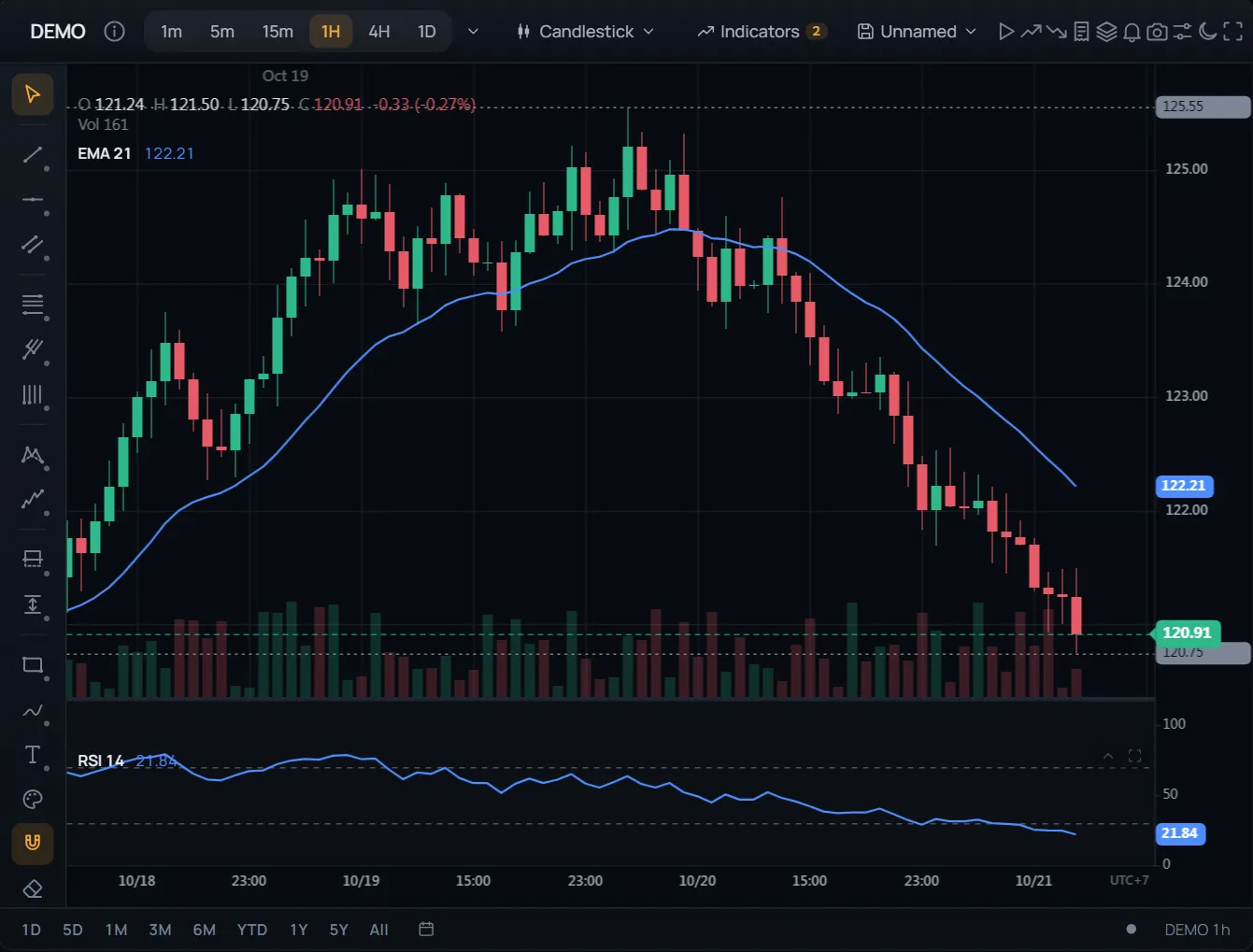 ● DemosYour own lookSimulated market data, generated in your browser
Which way for what
| You want to change | Use |
|---|---|
| The colours | theme ('dark', 'light' or a theme of yours), setTheme — API |
| The widget's corners, sizes, type and bars | ui / setUI — Styling |
| One part of the chart's look: the grid, the crosshair, a chart type's colours | applyOverrides by key — Styling |
| An indicator's lines, a pane's background | updateIndicatorStyle(id, { plots }), setPaneStyle |
| Which parts of the widget show | features / setFeatures — below |
| What users can do on the chart: draw, trade, zoom | The chart's own features: chartOptions: { features: { drawings: false } } |
| Buttons, menus and status items of your own | addToolbarButton, addToolbarDropdown, addSidebarButton, addStatusBarItem, getSlot, the menu hooks — below |
| Keyboard shortcuts of your own | addHotkey — below |
| Your own CSS | The stable hooks: --tcw-*, data-tcw-part — below |
| The widget's words | locale, messages — below |
| Indicators, drawings or chart types of your own | Plugins |
| All of the UI | The headless Chart, with your own around it — API |
Feature switches
Every part of the widget has a switch, and every switch is on until you turn it off. A name without a dot is a
whole capability, off wherever it shows: alerts takes away the bell, the alert entries of the menus,
and the alert notices. A dotted name is one place: toolbar.alerts takes away the bell alone, and the
menus still offer alerts. Switches change while the widget runs.
const widget = new ChartWidget(host, {
  features: {
    'toolbar.replay': false,          // one button
    'sidebar.patterns': false,        // a section of drawing tools
    'menu.chart.exportData': false,   // one menu entry
    hotkeys: false,                   // every key of the widget's
  },
})

widget.setFeatures({ sidebar: false, statusBar: false })   // a clean chart, while it runs
widget.isFeatureOn('sidebar')        // false
widget.getFeatures()                 // every switch, on or off
grid.setFeatures({ toasts: false })  // every chart of a ChartWidgetGrid
The names are a contract: new ones come, none is renamed. They are listed in WIDGET_FEATURES, and
TypeScript checks them; an unknown name is left out with a warning.
Switches show and hide the widget's own parts. To stop something on the chart itself — drawing, trading,
zooming, a timeframe — use the chart's features (chartOptions.features). The parts that bring data
or storage with them stay options: trading, watchlist, depthLadder and layouts decide whether they are there at all, and switches hide their buttons.
The older on/off options are the same switches, kept as they were:
| Option | Switches |
|---|---|
toolbar: false | toolbar |
drawingTools: false | sidebar, drawingSettings, hotkeys.tools, menu.chart.horizontalLine |
statusBar: false | statusBar, goToDate |
rangeBar: false | statusBar.range, goToDate |
accountPanel: false | accountPanel, orderTicket |
indicatorLegend, settings, alerts, objectTree, indicatorTemplates, intervalTyping, symbolInfo, navigation, dragDropImport, customTimeframes, fullscreen | The switch of the same name |
Every switch
| Group | Switches |
|---|---|
| Bars | toolbar sidebar statusBar |
| Capabilities | alerts objectTree symbolInfo symbolSearch settings indicatorSettings drawingSettings dataWindow commandPalette hotkeySheet goToDate replay screenshot copyImage shareView autoFib themeToggle fullscreen accountPanel orderTicket bracketOrders depthLadder layouts indicatorTemplates compare indicatorLegend navigation customTimeframes intervalTyping dragDropImport hotkeys toasts |
| Toolbar | toolbar.symbol toolbar.symbolInfo toolbar.timeframes toolbar.timeframeMenu toolbar.chartType toolbar.indicators toolbar.layouts toolbar.replay toolbar.bracketOrders toolbar.depthLadder toolbar.accountPanel toolbar.objectTree toolbar.alerts toolbar.screenshot toolbar.settings toolbar.themeToggle toolbar.fullscreen |
| Drawing sidebar | sidebar.cursor sidebar.favorites sidebar.lines sidebar.fibonacci sidebar.patterns sidebar.forecasting sidebar.annotation sidebar.style sidebar.magnet sidebar.eraser sidebar.zoomArea sidebar.stayInDrawing sidebar.undo sidebar.redo sidebar.clear |
| Status bar | statusBar.range statusBar.goToDate statusBar.market statusBar.connection statusBar.symbol statusBar.rangeTimeframe |
| On the chart | indicatorLegend.values indicatorLegend.visibility indicatorLegend.settings indicatorLegend.remove indicatorLegend.more pane.move pane.collapse pane.maximize navigation.zoom navigation.scroll navigation.reset selectionToolbar |
| Menus | menu.chart menu.chart.alert menu.chart.order menu.chart.orderTicket menu.chart.horizontalLine menu.chart.resetView menu.chart.drawings menu.chart.exportData menu.chart.settings menu.chart.scale menu.chart.goToDate menu.chart.paneScale menu.priceAxisAdd menu.drawing menu.drawing.settings menu.drawing.alert menu.drawing.order menu.drawing.group menu.drawing.lock menu.drawing.hide menu.drawing.duplicate menu.drawing.delete |
| Keys | hotkeys.commandPalette hotkeys.symbolSearch hotkeys.save hotkeys.tools hotkeys.invertScale hotkeys.goToDate hotkeys.help |
A few that say more than their name: indicatorLegend off gives the panes their titles back; menu.chart.* covers the "+" by the price axis as well as the right-click menu; compare takes the add button of the object tree, and comparisons already on stay listed; toasts silences the
widget's own notices (its errors still show), while yours through widget.toast() show as well. selectionToolbar off hides the toolbar over a selected drawing; the right-click menu stays. statusBar.rangeTimeframe off keeps the timeframe when a range on the range bar is longer than its bars fit; on, it switches to weeks or months and back.
Your own notices can carry an icon of the widget's set, by name ('bell', 'check', 'info'…), as the widget's alert notice carries the bell. The widget draws no emoji anywhere: every icon, the chart's own labels included, comes from one set.
widget.toast('Order filled at 64,200', 'info', 'check')  // the icon set's check before the text
widget.toast('Feed lost', 'error', 'info')
Your own parts
Your buttons, menus and items go into the widget's bars, look like its own and follow its theme and look. Each returns a handle to change or remove it, and shows while its bar does.
widget.addToolbarButton({ id: 'news', label: 'News', icon: 'bell', toggle: true, onClick })

widget.addToolbarDropdown({
  id: 'scans',
  label: 'Scans',
  icon: 'layers',
  side: 'left',                              // with the chart controls
  items: () => [                             // asked for each time it opens
    { label: 'Breakouts', onSelect: () => runScan('breakouts') },
    { label: 'Live only', checked: liveOnly, onSelect: () => (liveOnly = !liveOnly) },
  ],
})

const ruler = widget.addSidebarButton({ id: 'ruler', label: 'Ruler', icon: 'ruler', toggle: true,
  onClick: () => ruler?.setActive(toggleRuler()) })

const latency = widget.addStatusBarItem({ id: 'latency', text: '12 ms', label: 'Latency' })
latency?.setText('15 ms')
widget.addHotkey({ keys: 'Alt+N', label: 'New note', onPress: () => addNote() })   // replaces a widget shortcut on the same keys; listed in the shortcut sheet (?)

// Anything else of yours: beside the toolbar's controls, under the sidebar's,
// on either end of the status bar, or over the chart
widget.getSlot('chart')?.append(myOverlay)   // the layer lets the pointer through; give yours pointer-events: auto
Slots: toolbar.left, toolbar.right, sidebar, statusBar.left, statusBar.right, chart.
Your menu entries
Entries of yours go at the end of the widget's menus, asked for each time one opens, with where it opened.
new ChartWidget(host, {
  chartMenuItems: ({ area, price }) => area === 'plot' && price !== undefined
    ? [{ label: 'Copy price', onSelect: () => copy(price) }]
    : [],
  drawingMenuItems: ({ id, type, selected }) => [{ label: 'Share', icon: 'link', onSelect: () => share(id) }],
  indicatorMenuItems: ({ instanceId, indicatorId }) => [{ label: 'Explain', onSelect: () => explain(indicatorId) }],
})
Your own CSS
The widget is part of your page, not a frame, so your CSS reaches it. These hooks stay as they are through 1.x:
--tcw-*variables on.tcw-root: the look's tokens (see Styling).[data-tcw-part~="toolbar.screenshot"]: every part carries the names of its switches, so a rule finds it by the same name..tcw-root[data-tcw-off~="sidebar"]: the switches that are off, on the widget's root.[data-host-button="id"],[data-host-item="id"]: your own buttons and status items, by the id you gave them.
Other class names are the widget's own and may change: style by the hooks.
/* your toolbar button in the accent colour */
.tcw-root [data-host-button="news"] { color: var(--tcw-accent); }
/* a wider panel of yours while the drawing tools are switched off */
.my-layout:has(.tcw-root[data-tcw-off~="sidebar"]) .my-panel { width: 320px; }
Words
The widget speaks 30 languages (locale; English and Vietnamese are built in, the others load from @tradecanvas/chart/widget/locales). messages changes any string of it, on top of the
language's. Indicator names stay as they are.
import { de } from '@tradecanvas/chart/widget/locales'

new ChartWidget(host, {
  locale: 'de',
  messages: { ...de, 'toolbar.indicators': 'Studien' },
})
Deeper
Indicators, drawing tools and chart types of your own register as plugins and
then work like the built-in ones, in the menus included. For a UI that is all yours, use the headless Chart: the same engine without the widget.